Blitz Brigade has captured the hearts of mobile gamers worldwide with its fast-paced action and vibrant graphics, but many players now seek to experience this thrilling game on a larger screen with enhanced control precision. Transitioning from mobile to computer offers significant advantages, including improved visibility during intense firefights and the ability to use keyboard and mouse combinations for superior accuracy. This guide will walk you through the entire process of setting up an Android emulator on your PC, allowing you to dive into the action-packed world of Blitz Brigade with ease and confidence.
Understanding android emulators for pc gaming
What is an Android Emulator and Why Use One?
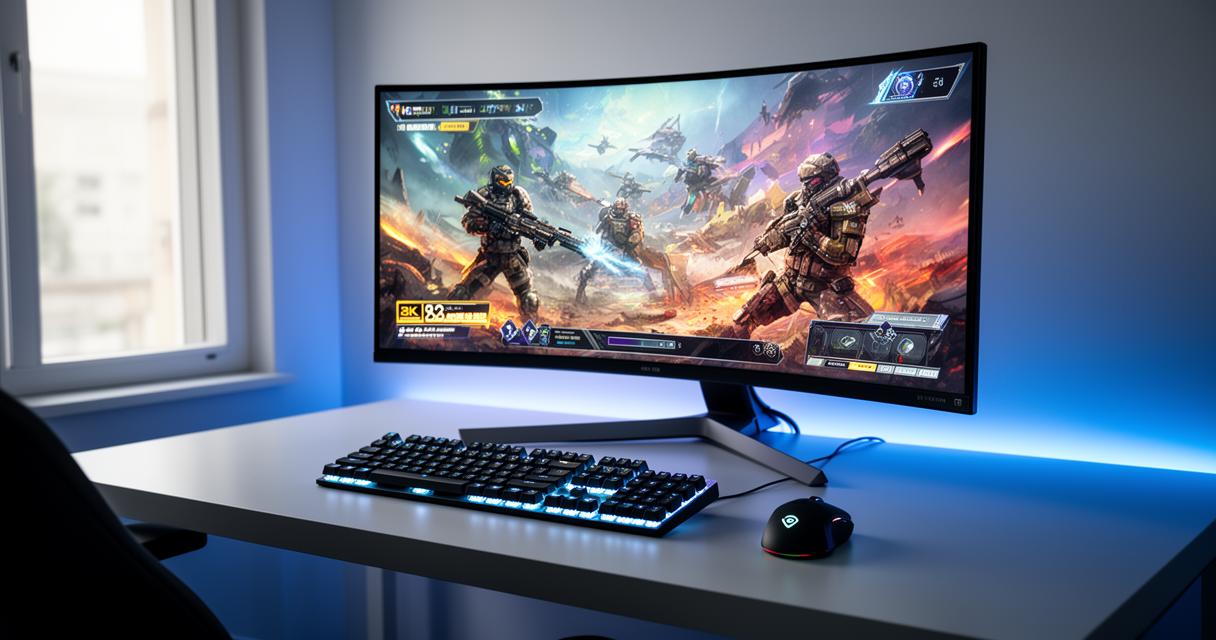
An Android emulator is a software application that replicates the Android operating system on your computer, effectively creating a virtual mobile device within your desktop or laptop environment. This technology allows you to run Android applications and games that were originally designed for smartphones and tablets directly on your PC. The primary advantage of using an emulator for gaming lies in the enhanced performance and comfort it provides. When you play Blitz Brigade through an emulator, you benefit from a larger display that makes spotting enemies and navigating maps considerably easier. Additionally, the ability to map keyboard keys and mouse clicks to touch controls transforms the gameplay experience, offering a level of precision that touchscreens simply cannot match. Emulators also allow you to leverage your computer's superior processing power and graphics capabilities, which can result in smoother frame rates and reduced lag compared to older mobile devices.
Choosing Between BlueStacks and Nox Player for Blitz Brigade
When it comes to selecting the right emulator for running Blitz Brigade, two names consistently rise to the top of the list: BlueStacks and Nox Player. Both platforms have established themselves as reliable choices for Android gaming on PC, yet they each offer distinct features that may appeal to different users. BlueStacks is renowned for its user-friendly interface and extensive compatibility with a wide range of Android applications. It receives regular updates and has a large community of users who share tips and troubleshooting advice. The software is optimised for gaming performance and includes features such as key mapping, multi-instance support, and high frame rate options. Nox Player, on the other hand, is celebrated for its lightweight design and flexibility. It offers robust customisation options, allowing you to adjust CPU and RAM allocation to suit your computer's specifications. Nox Player also supports gamepad controllers and provides a straightforward interface for managing multiple instances of the emulator simultaneously. When deciding between these two options for Blitz Brigade, consider your computer's hardware capabilities and your personal preference for interface design. Both emulators are capable of running the game smoothly, so your choice may ultimately come down to which platform feels more intuitive and comfortable for your gaming style.
Step-by-step installation process for running blitz brigade
Downloading and installing your chosen emulator
The first step in your journey to playing Blitz Brigade on your computer is to download and install your selected Android emulator. Begin by visiting the official website of either BlueStacks or Nox Player, ensuring that you are downloading the software from a legitimate source to avoid any security risks. Once you have navigated to the correct website, locate the download button and click it to begin downloading the installation file. The file size will typically range from several hundred megabytes to over a gigabyte, depending on the emulator and version you choose. After the download completes, locate the installer in your downloads folder and double-click it to launch the setup wizard. The installation process will guide you through several straightforward steps, including accepting the licence agreement and choosing an installation directory on your hard drive. During installation, the emulator may request permission to make changes to your system, which is a standard part of the setup process. Allow the installer to complete its work, which may take several minutes depending on your computer's speed. Once the installation finishes, you may be prompted to restart your computer to ensure all components are properly integrated into your system.
Configuring emulator settings for optimal performance
After successfully installing your emulator, the next crucial step is to configure its settings to ensure Blitz Brigade runs smoothly and delivers an enjoyable gaming experience. Launch the emulator by clicking its desktop icon or finding it in your start menu. Upon first launch, the emulator will need a few moments to initialise and set up its virtual Android environment. Once the home screen appears, navigate to the settings menu, which is typically accessible through a gear icon or a menu button. Within the settings, you will find options to adjust performance parameters such as allocated RAM, CPU cores, and graphics rendering mode. For optimal performance with Blitz Brigade, it is recommended to allocate at least two gigabytes of RAM and at least two CPU cores if your system can spare them. In the graphics settings, select the option for high performance or OpenGL mode, which will enable the emulator to utilise your computer's graphics card more efficiently. Additionally, ensure that the display resolution is set to a comfortable level that matches your monitor's capabilities while maintaining smooth frame rates. Some emulators also offer specific gaming modes or performance profiles designed to prioritise speed and responsiveness over other features. Activating these modes can provide a noticeable improvement in how Blitz Brigade runs, particularly during intense combat sequences where every millisecond counts.
Getting Started with Blitz Brigade on Your Computer
Accessing the google play store within your emulator
With your emulator properly configured, you are now ready to access the Google Play Store and locate Blitz Brigade for installation. Look for the Play Store icon on the emulator's home screen, which typically resembles the familiar multicoloured triangle associated with Google's app marketplace. Tap or click on this icon to launch the Play Store interface. If this is your first time using the emulator, you will be prompted to sign in with a Google account. You can use an existing account or create a new one specifically for your emulator activities. Enter your credentials carefully and proceed through any additional verification steps that Google may require, such as agreeing to terms of service or setting up security options. Once you have successfully signed in, you will have full access to the extensive library of Android applications and games available on the Play Store. Use the search bar at the top of the screen to type in Blitz Brigade, ensuring you spell the name correctly to find the exact game you are looking for. The search results should display the official Blitz Brigade game icon and title, along with information about the developer and user ratings.
Installing Blitz Brigade and Customising Controls for PC Gameplay
When you have located Blitz Brigade in the Play Store, click on the game's listing to open its detailed information page. Here you will find a description of the game, screenshots, user reviews, and an install button. Click the install button to begin downloading the game files to your emulator. The download and installation process may take several minutes depending on your internet connection speed and the size of the game. Once the installation completes, you will see an open button appear, which you can click to launch Blitz Brigade for the first time. The game may require additional data downloads or updates before you can start playing, so be patient as these processes complete. After the initial setup finishes, you will be ready to jump into the action. One of the most significant advantages of playing Blitz Brigade on PC through an emulator is the ability to customise your controls for maximum efficiency. Most emulators include a built-in key mapping tool that allows you to assign keyboard keys and mouse buttons to specific touch controls within the game. Access this feature through the emulator's toolbar, usually represented by a keyboard icon. Experiment with different key configurations to find a setup that feels natural and responsive for your playstyle. Common configurations include using the WASD keys for movement, the mouse for aiming and shooting, and additional keys for actions such as reloading, switching weapons, and using special abilities. Once you have established a control scheme that works well for you, save your settings and enjoy the enhanced gameplay experience that comes with playing Blitz Brigade on your computer.